Case studiesJuly 2026
Software solution for an IoT device
We turned a touchscreen control panel into a reliable, straightforward interface tailored to ASTEL’s needs and visual identity.

The challenge
Prepare an IoT device to provide reliable access to the client’s existing web application within their local IT infrastructure.
The client wanted to use a touchscreen control panel (Portworld YC-SM41P) as an interface for managing pool lighting. The embedded device had to act as a simple, always-on terminal that displays and controls the web application on its 4" touchscreen. Alongside the core mode of operation, we also needed to design a configuration mode that provides full control. Finally, we needed to optimise the mass-deployment process for a larger number of devices.
Our solution
A customised operating system for kiosk operation and software for device configuration.
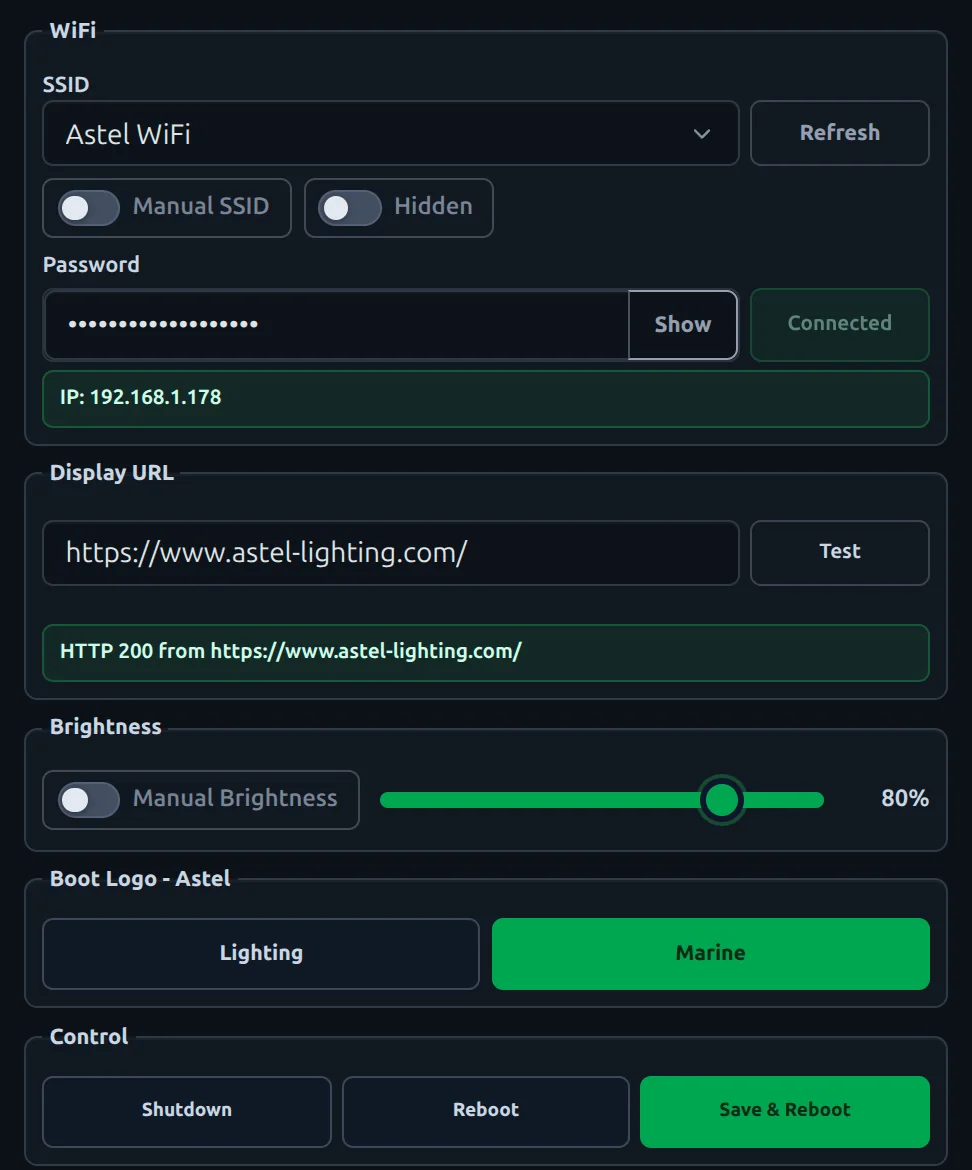
We optimised the manufacturer-supported Debian Linux operating system by removing all unnecessary processes to reduce startup time. We implemented kiosk operation with a full-screen application display and assigned the device’s physical button the function of switching to configuration mode. We then developed a configuration application that lets the user change all necessary settings directly on the device. We thoroughly tested the complete system and refined it through several development iterations into its final version, ready for handover to the client.
The result
A fully working, tested software system, ready to be deployed across a larger number of identical devices.
We handed over the complete software, together with accompanying documentation that describes in detail how to install it on a new device. The software can be easily upgraded and adapted to the client’s future requirements.
The device therefore supports two modes of operation: config and kiosk. In config mode, the user can set:
- the Wi-Fi network
- the URL of the web application displayed in kiosk mode
- screen brightness: manually or automatically based on the device’s light sensor
- the boot logo shown when the device starts
In kiosk mode, the device connects to the saved Wi-Fi network, launches Chromium in full-screen mode and opens the web application at the stored URL.
The device’s only physical button has two functions. If the user holds it for 3 seconds, the device restarts and enters config mode with default settings. A short press in kiosk mode refreshes the web application display if it encounters problems.